


 Free HD Photo Converter
Or drag, drop & paste images / ZIP here
JPG · PNG · WEBP · ZIP
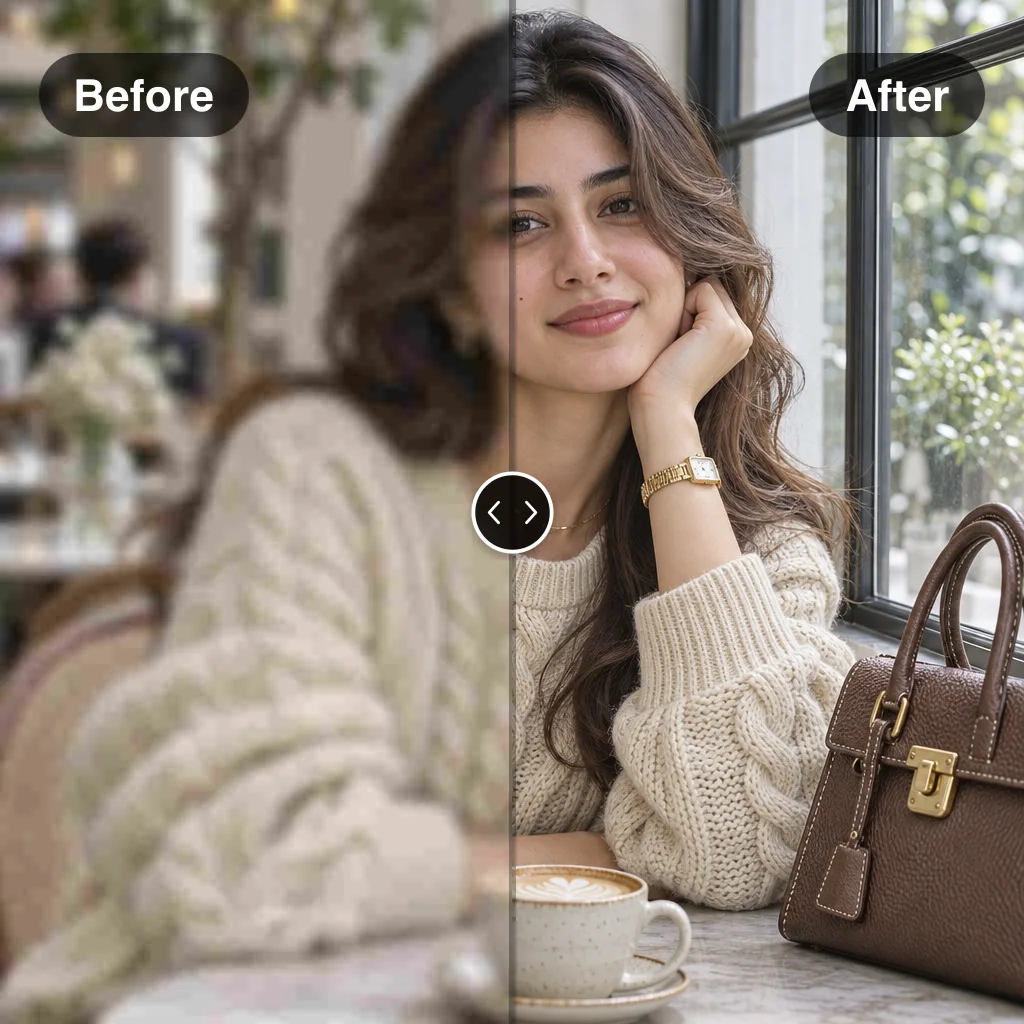
What you can convert to HD
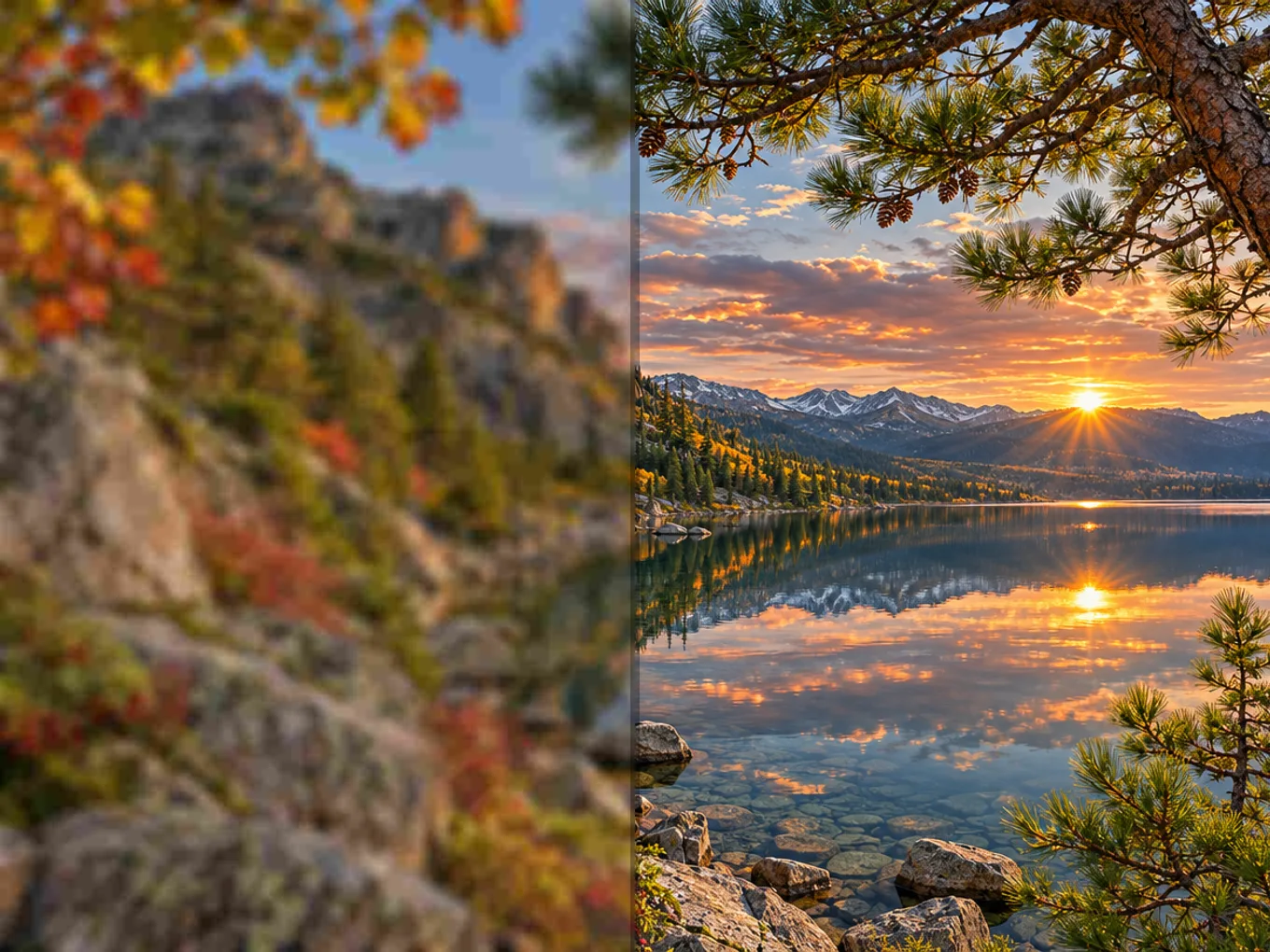
How to convert a photo to HD
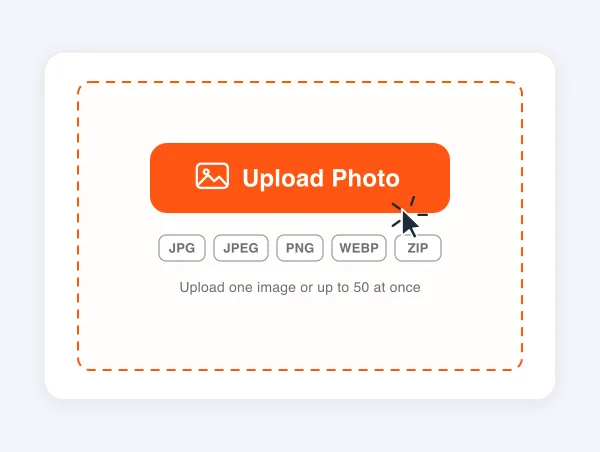
Step 1
Upload your image.
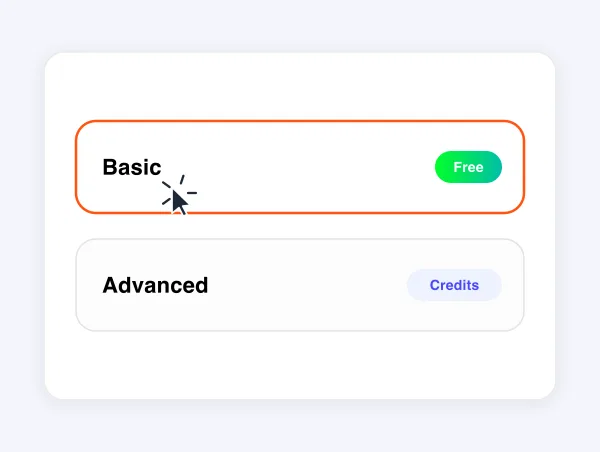
Step 2
Choose the Basic model for fast automatic processing, or the Advanced model for better results and resolution control.
Step 3
Preview the result and download your HD photo.
HD photo converter vs image upscaler
Both run on the same enhancement engine, but they are tuned for different outcomes. This page is built for fidelity: convert a photo to HD and keep everything recognizable, with detail recovered rather than invented. The upscaler is the right place when you want creative latitude, such as adding new texture through its Advanced model's AI detail control. Try our AI Image Upscaler. for that.
Frequently Asked
Questions: Questions:
What is an HD photo converter?


An HD photo converter is a tool that turns a low-quality or blurry photo into a sharper, high-definition image. Photiu.ai reconstructs detail instead of simply enlarging pixels, so the converted photo looks clearer on screen and in print.
How do I convert a photo to HD online?
Upload your image, choose a model, and download the result. The Basic model is free: it enlarges a small image by up to 4x and caps the output at 2624 px on the longer side. The Advanced model works in a different way, letting you set the output edge directly at 2K, 4K, 8K, or 12K with credits.
Is an HD photo converter the same as an image upscaler?
They share the same enhancement engine, but they aim at different results. This HD photo converter is built for fidelity: its job is to make a photo look high definition while staying true to what was actually there. Shapes, colors, and identity are preserved, and detail is recovered rather than invented. Our image upscaler takes a more creative route. Its Advanced model exposes an AI detail control, so you can decide how much new texture and micro-detail the AI adds during upscaling. Keep it on Faithful when accuracy matters, or move toward Creative when you want the model to enrich a plain or synthetic surface with texture that was never captured. If you need that extra creative latitude, the upscaler gives you the knob.
Can I convert a blurry photo to HD?
Yes. The converter can improve clarity on soft or low-resolution photos by restoring edges and texture. Results still depend on the original, so a very damaged or tiny image may not become perfectly sharp.
What resolution will I get?
With the Basic model, a small image is enlarged up to 4x, and the longest side never exceeds 2624 px. That keeps the free tier predictable no matter what you upload. The Advanced model is not described in multiples. You pick the maximum edge length you need: 2K (2000 px), 4K (4000 px), 8K (8000 px), or 12K (12000 px). Choose 4K for most print work and 8K or 12K for large-format output or deep crops.
Is this HD photo converter free?
Yes, the Basic model is free. If you need 4K, 8K, or 12K output, use the Advanced model with credits.
Which file formats are supported?
Photiu.ai supports JPG, JPEG, PNG, and WEBP. You can also upload a ZIP file or multiple images at once, up to 50 files.
Can I use converted HD photos for commercial projects?
You can use the converted images in commercial projects such as listings, marketing, and print, as long as you have the rights to the original image and the use complies with Photiu.ai's terms. Converting a photo to HD does not change ownership or copyright of the original file.
What counts as an HD photo?
HD stands for high definition, and in practice it means the image carries enough pixels to stay sharp at the size you need. A common baseline is 1920 x 1080 px. Above that you get 2K, 4K, and 8K, which hold up better on large screens and in print. The number matters less than the ratio between pixels and viewing size. A 1200 px photo can look perfectly crisp on a phone, yet fall apart on an A3 poster. That is why the converter lets you pick a target instead of always pushing to the largest size.
How are the Basic and Advanced models sized differently?
They use two different ways of describing output, and mixing them up is the most common source of confusion. The Basic model is described in multiples. It enlarges a small photo by up to 4x, which means the width and height each grow to as much as four times the original. 4x is the ceiling, not a promise: the longest side is always capped at 2624 px, so a large upload gets less enlargement than a tiny one. Think of the Basic model as a way to rescue small images, not a way to push a good photo further. The Advanced model is described in edge length instead. You do not choose a multiplier; you choose the maximum length of the longest side: 2K means 2000 px, 4K means 4000 px, 8K means 8000 px, and 12K means 12000 px. This is more direct when you already know the size the final image has to be, for example a print format or a storefront requirement.
Will the enhanced photo look natural?
The aim is clarity, not a processed look. Photiu.ai restores edges and texture instead of cranking up sharpening, so skin keeps its softness and surfaces keep their grain rather than turning plastic. How natural the result feels depends on the source. A slightly soft photo usually comes back looking like it was shot with a better lens. A heavily compressed or very small image has less real information to work with, and the model has to infer more, which can read as slightly smoothed at close inspection.
Does converting a photo to HD lose quality?
The conversion does not degrade the file you upload. Photiu.ai reads the original, rebuilds detail, and writes a new image, so the source stays untouched. What does compound is repeated processing. Each pass gives the model another chance to interpret the same pixels, and small inaccuracies can stack up. If you need a different size or model later, go back to the original file rather than running the converted version through again. One pass from the source always gives the cleanest result.
Will AI change faces, logos, or text in my photo?
Normally no. The model reconstructs detail rather than redrawing content, so a face stays the same face and a logo keeps its shape. It does not add or remove objects. There are two cases worth knowing about. Small text is the hardest thing to restore, and on the free Basic model fine print or thin logo lettering can come out soft or unreadable. And if your photo is already fairly high resolution and you simply want it sharper, the Basic model has little room to help, since its 4x enlargement is designed for smaller images. Both cases are where the Advanced model does better. It handles text and logo shapes with noticeably more precision, and it is the right pick when the source is already large and you want a crisper result.